¶ AS044 Single Phase Energy Meter Board Bringup Guide
To guide customers through the board bring-up process after shipment
¶ ℹ️ Introduction
This guide outlines the steps to set up an energy meter test bench using an AP100 Test Bench, an energy meter, and DLMS GUI software for communication and testing. It incorporates information from the Renesas DLMS GUI User Manual v1.9.6, general DLMS knowledge, and the suggestion of GXDLMSDirector as an alternative GUI.
¶ 💡 Components Required
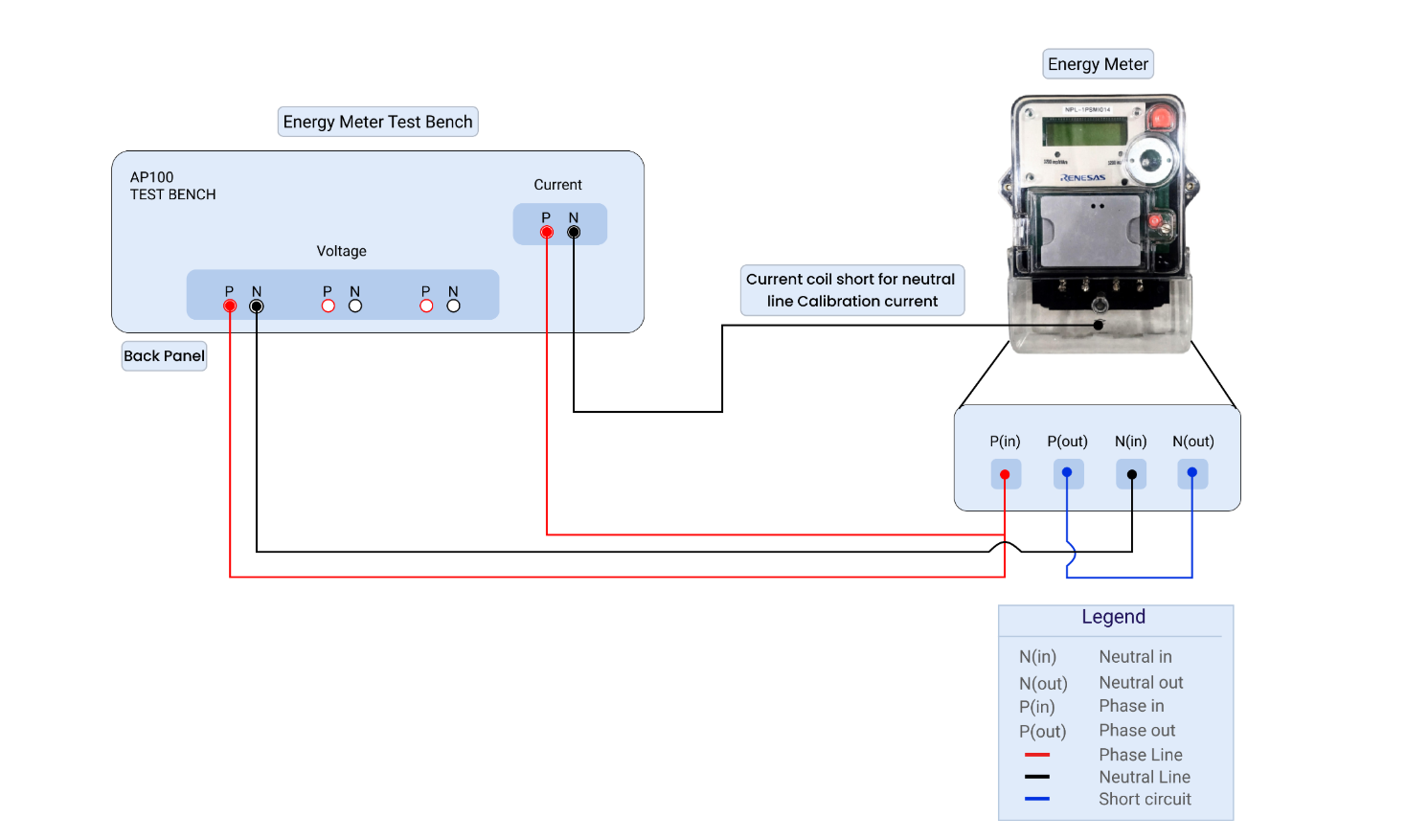
- AP100 Test Bench: Provides the voltage and current source for testing the energy meter. The image shows connections from the back panel.
- Energy Meter: The device being tested. The image shows the meter terminal labels P(in), P(out), N(in), N(out).
- Connecting Wires: Appropriate wires for connecting the test bench to the energy meter.
- Computer: A computer with a Windows operating system to run the DLMS GUI.
- DLMS GUI Software: Choose one:
- Renesas DLMS GUI: Version 1.9.6 or newer (based on the provided manual).
- GXDLMSDirector: A popular alternative (download from Gurux website).
- "BouncyCastle.Crypto.dll": Version 1.8.1, downloadable from http://www.bouncycastle.org/csharp/download/bccrypto-csharp-1.8.1-bin.zip. This is required for the Renesas DLMS GUI when using high security levels.
- (Optional) HDLC Service Page Push object list from class 40, attribute 2.
¶ 📋 Hardware Connections (Energy Meter and AP100)
Refer to the image for the following connections:
1. Voltage Connections:
- Connect the Phase (P) voltage output from the AP100 Test Bench to the Phase In P(in) terminal of the Energy Meter.
- Connect the Neutral (N) voltage output from the AP100 Test Bench to the Neutral In N(in) terminal of the Energy Meter.
2. Current Connections:
- Connect the Phase (P) current output from the AP100 Test Bench to the Phase Out P(out) terminal of the Energy Meter.
- Connect the Neutral (N) current output from the AP100 Test Bench to the Neutral Out N(out) terminal of the Energy Meter.
¶ 📋 DLMS GUI Software Setup
- Installation:
- Renesas DLMS GUI: To download a DLMS GUI, the most common option is to download the "GXDLMSDirector" application from Gurux, which provides a user interface for interacting with DLMS (Device Language Message Specification) smart meters; you can access it on the Gurux website and download the appropriate version for your system.
- GXDLMSDirector: Download and install the application from the Gurux website. This is a common and well-supported DLMS GUI.
-
Dependency (Renesas DLMS GUI): If using the Renesas DLMS GUI and planning to use high security levels, download "BouncyCastle.Crypto.dll" version 1.8.1 and place it in the same folder as DLMSGUI.exe.
-
Running the GUI:
- Renesas DLMS GUI: Execute DLMSGUI.exe.
- GXDLMSDirector: Launch the application.
¶ ♾️ DLMS GUI Configuration and Usage (Renesas DLMS GUI)
This section focuses on the Renesas DLMS GUI based on the provided manual. Consult GXDLMSDirector documentation for that specific tool. GXDLMSDirector is a more user-friendly alternative and is highly recommended.
- Control Form: The GUI will display a control form where you can manage channels. See page 7 of the manual for details. The "Status Data Grid View" displays channel status, including COM port, Baud Rate, and Security Level.
- Add: Creates a new channel.
- Remove: Deletes selected channels.
- Open: Opens the Main window (if connected) or the connection form (if not connected).
- Edit: Disconnects and opens the connection setting window.
- Save/Load Config: Saves/Loads connection settings to/from an XML file.
- Help: Displays the "About" Form.
- Exit: Closes the program.
- Connection Form (Serial Port or Ethernet): Configure communication (see pages 8-9 of the manual).
- Serial Port: Select Port, Baud rate, Parity, and Stop Bit. Mode E is an option (starts at 300 baud).
- Ethernet: Select TCP or UDP, server address, client address, and port. Ethernet logs are displayed in a separate window.
- Time Out Settings: Configure Response Time Out and Inter-frame Time Out.
3.Association Setting (AARQ config): See pages 10-15 of the manual.
- Protocol Setting: Configure Client ID, Logical Device ID, Server address modes (1, 2, or 4 bytes), and Ciphering enable/disable. The Client ID depends on the security level being used (see pages 12-13). "India Version" disables event notifications. "Preset Setting" offers quick configuration options.
- Proposed and Negotiated xDLMS Information: Shows supported client and server functions.
- Authentication Setting: Choose No security, Low security, or High security (AES-128, SHA1, or MD5). High security requires "BouncyCastle.Crypto.dll". Configure challenge and shared key for HLS mode.
- Ciphering Setting: Set the security policy (None, SC-A, SC-E, SC-AE), System Title of server, and Encryption Keys.
4.Main Window: Access DLMS objects and services (see pages 18-24 of the manual).
- Object List: Displays classes and objects with access rights.
- Function Buttons:
- Get Object List: Retrieves the object list from the meter.
- Save Object/Load Object List: Saves/Loads the object list to/from an XML file.
- Get Service: Retrieves data of a selected attribute. Double-click for quick access. "Get Selected Object" opens an attribute selection window.
- Set Service: Sets a value for an attribute with write permission. Opens the "Set Data Form." Supports encoding structure data (page 21).
- Action Service: Sends an action request. Used for tasks like Firmware Updates (Class 18, page 22).
- Event Notification Service: Retrieves event notifications (disabled in the India version).
- Log/Traffic Display: Shows the communication log.
- Connection Status notification: Displays channel behaviors via the status bar, window tag, and menu bar color.
5.Ciphering Setting Change: Change security settings after logging in (Menu > Setting > Security, page 16).
6.Supporting Tools: Date/Time encoder, Data converter, String converter, and Event status bit decoder (View menu, pages 27-31).
7.Extract Object List: Current object list can be saved inpt csv file by selecting “Extract Object List to csv” from File Menu.
¶ 🧩 DLMS GUI Configuration and Usage (HDLC Service Page)
Pre-establish association Check Pre-establish AA on Association setting window, select client ID of PUSH association. then click “Next” button to open Main window.
HDLC service page get Push object list from class 40, attribute 2.
Data Notification page After obtained Push object list and go to Data Notification page, check “Get Data Notification” to start receiving push message.
¶ 📙 Legend
- N: Neutral
- P: Phase
- N(in): Neutral In
- N(out): Neutral Out
- P(in): Phase In
- P(out): Phase Out
¶ ⌛Important Considerations
- Safety: Ensure all connections are secure and that the test bench and energy meter are properly grounded.
- Voltage and Current Ratings: Verify that the voltage and current settings on the AP100 Test Bench are within the acceptable range for the energy meter being tested.
- DLMS/COSEM Knowledge: A solid understanding of DLMS/COSEM concepts is essential. Refer to the DLMS Blue Book for details.
- Security: Pay close attention to security settings, especially with high security levels.
- Documentation: Refer to the manuals for all devices and software.
- GXDLMSDirector: If using GXDLMSDirector, use the Gurux website documentation.
This guide provides a comprehensive setup procedure. Remember that the GXDLMSDirector is usually the better choice for a DLMS GUI. Ensure you consult specific documentation! Pay attention to COM port/Ethernet settings and security configurations.